
DuckLake
Before you start
Section titled “Before you start”- The Owner role in Depositori.
- From whoever runs the lake: the catalog (a
.ducklakefile, or a Postgres database aspostgres:dbname=… host=…), the data path (for exampleaz://container/folder) and, for data in Azure, the storage account name. - A way to sign in. Either your Microsoft account, with access to the catalog database and read access to the storage; or a database login for the catalog, which you store in Depositori.
Add the connection
Section titled “Add the connection”- Open Connections and choose Add connection.
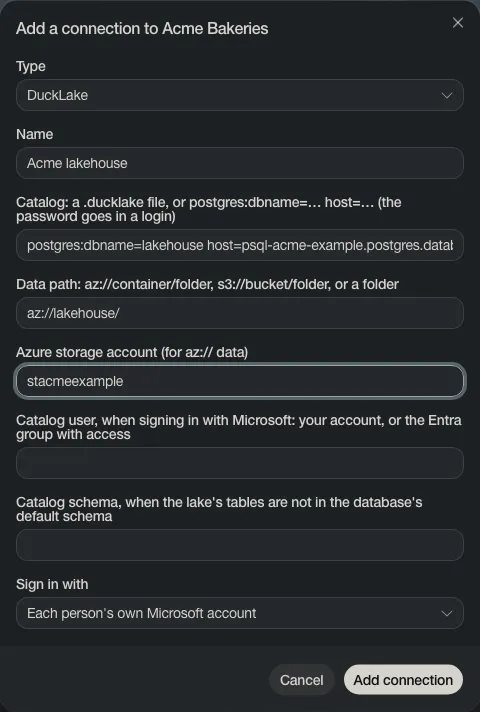
- Set Type to DuckLake and give it a Name.
- Fill in the catalog, the data path and the storage account. The other two fields are only needed when your lake differs from the default.
- Under Sign in with, keep your own Microsoft account, or choose Add a login for a database login.
- Choose Add connection.
Read its tables
Section titled “Read its tables”On the connection’s card:
- Test connection checks that the lake can be reached.
- Import tables and views lists the schemas. Tick the ones you want and choose Import. The tables become a model.
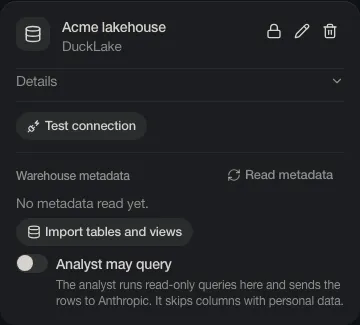
Analyst may query is off. Read The analyst and AI before you turn it on.