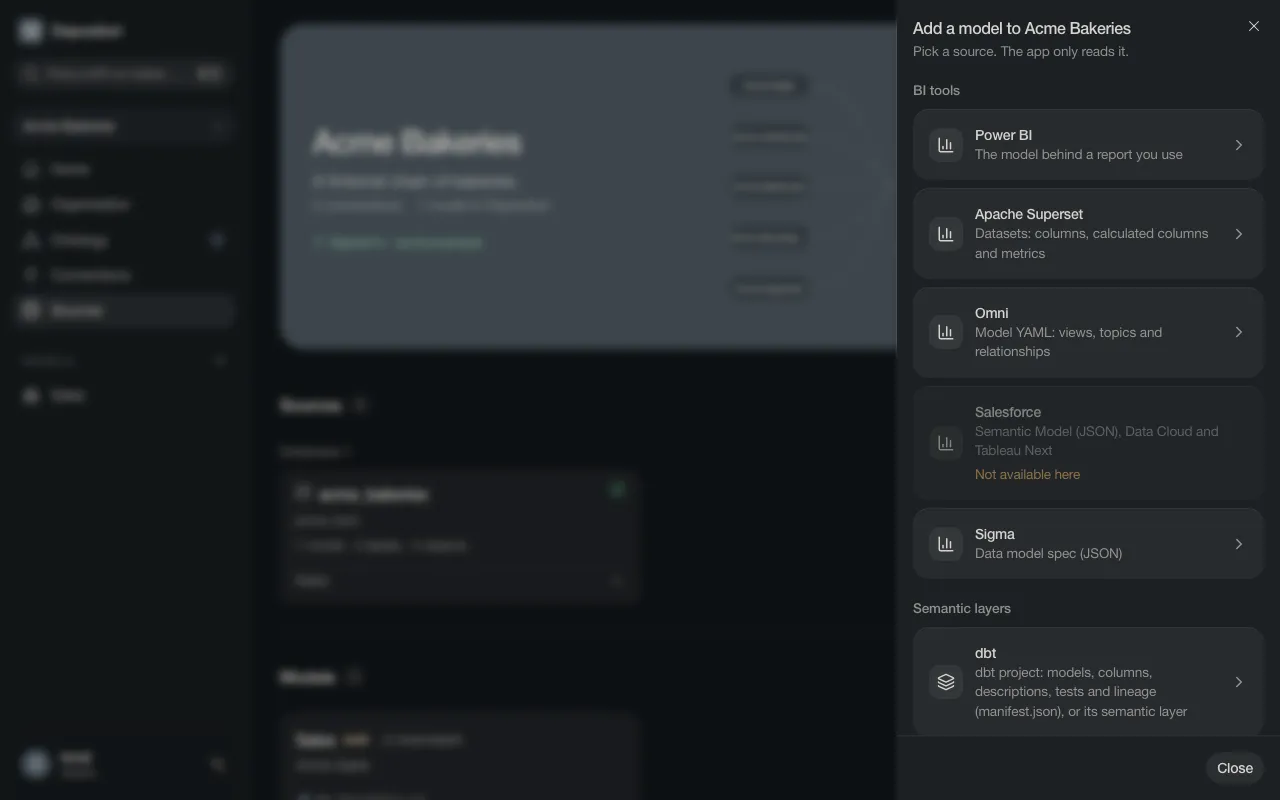
Sources and how they link up
A number in a report has usually travelled a long way: built in dbt, stored in a DuckLake or an Azure SQL database, modelled in Power BI, shown in a Superset dashboard. Connect each of them, and Depositori shows the whole way in the lineage.
| Source | What Depositori reads | Page |
|---|---|---|
| Power BI | The model behind a report: tables, relationships, metrics | Power BI |
| DuckLake | Tables and views of the lake | DuckLake |
| Azure SQL | Tables, views and what the views read | Azure SQL |
| dbt | Models, columns, descriptions, tests and lineage | dbt |
| Superset | Datasets with their columns and metrics | Superset |
Every source works in two steps. You need the Owner role.
- Add a connection on the Connections page: where the source is. Never a password.
- Import from the connection’s card: Depositori reads the definitions into a model.
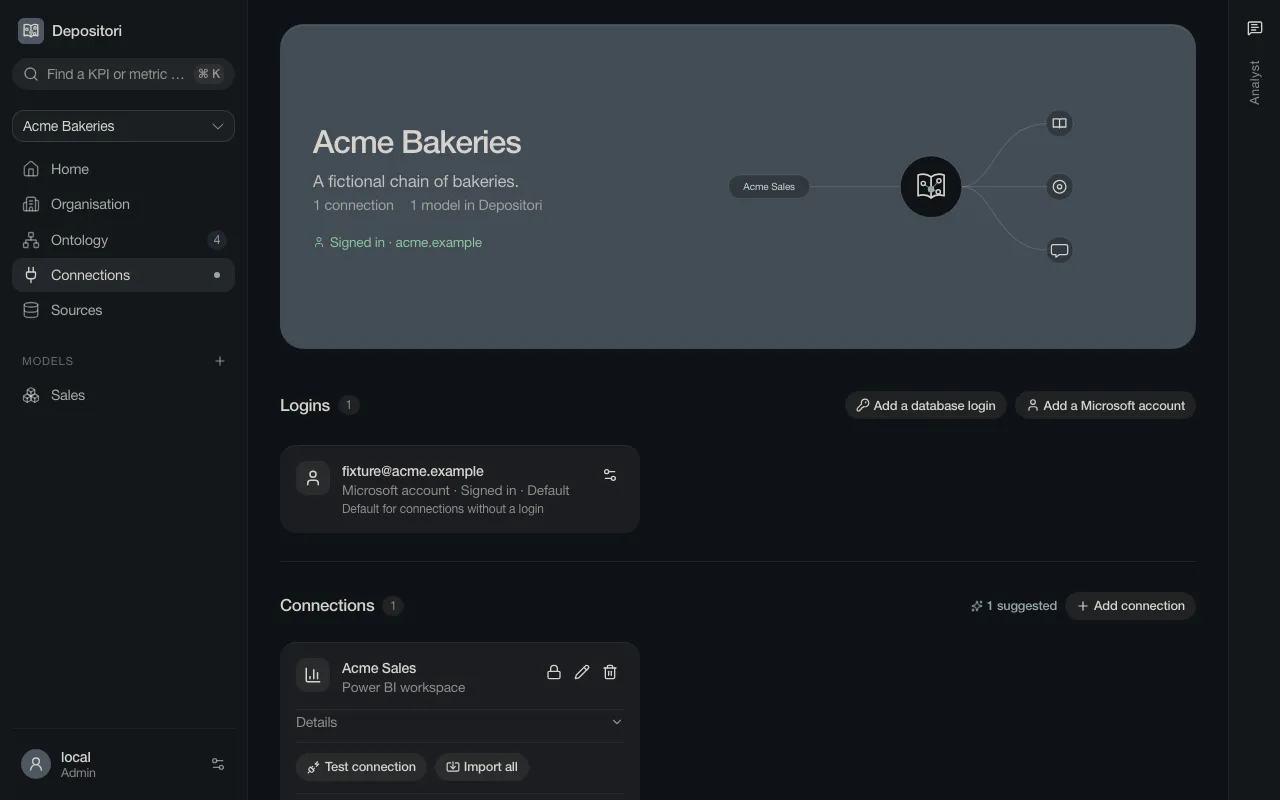
Depositori finds the next source for you
Section titled “Depositori finds the next source for you”When a model is read, Depositori sees which databases it reads from. They are listed on the Sources page. A database without a connection is offered as a suggestion, already filled in.
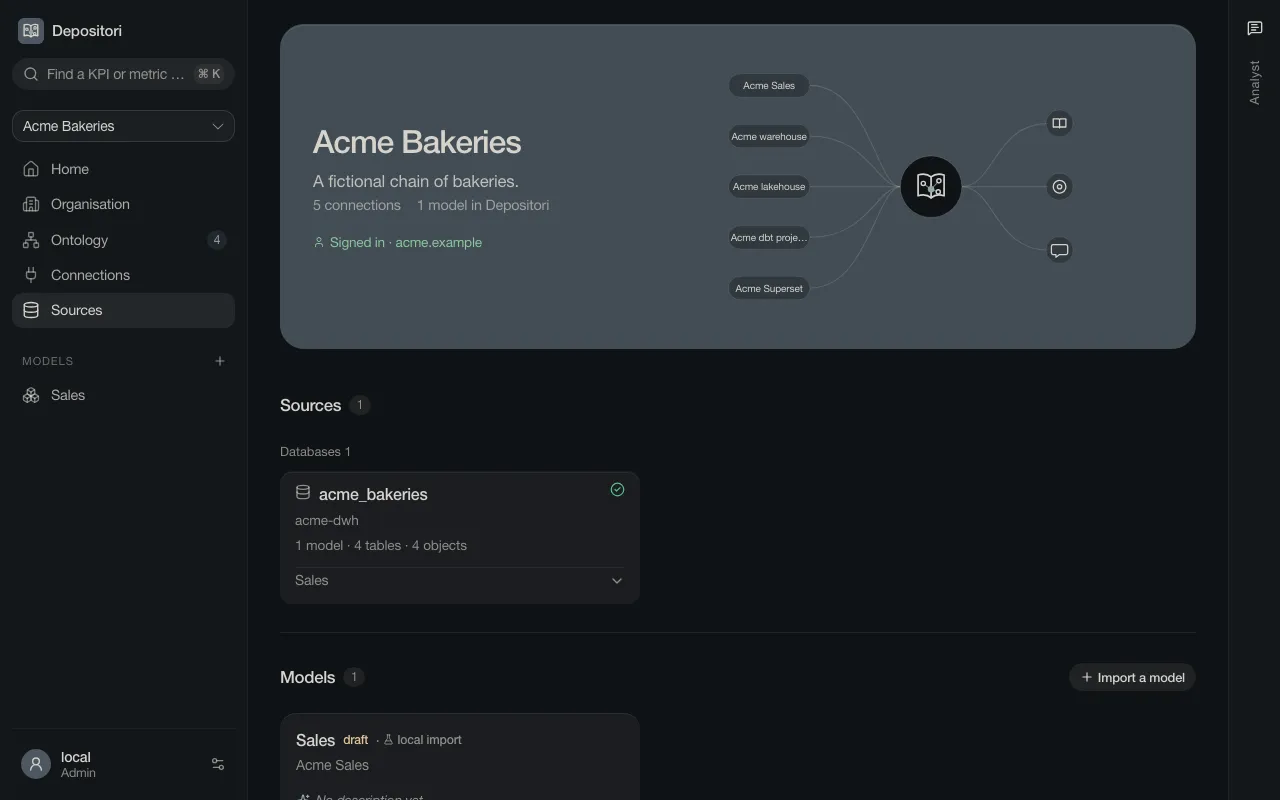
Other sources
Section titled “Other sources”The + next to Models opens Add a model, with every source Depositori can read. Some read from files you upload instead of a connection.